Use Ashby Assistant directly in Slack

Today, we're releasing Ashby Assistant in Slack in open beta for all customers. Now, you can DM the Ashby app in Slack to ask questions about candidates, jobs, interviews, and feedback. Take actions like drafting emails, advancing candidates, or adding notes, without opening Ashby.
This saves time for recruiters and hiring managers by reducing context switching and copy-paste, while keeping the same permissions and review steps as Ashby.
Why we're bringing Ashby Assistant into Slack
Slack is where many hiring conversations happen. Hiring managers use Slack to message recruiters about candidates, run debrief threads, and make approvals. But when it's time to take action, like submit feedback, advance a candidate, or get a report, you've had to leave Slack and open Ashby.
Ashby Assistant in Slack is the same assistant we just launched inside Ashby, with full conversational parity, and the convenience of being able to access it in Slack.
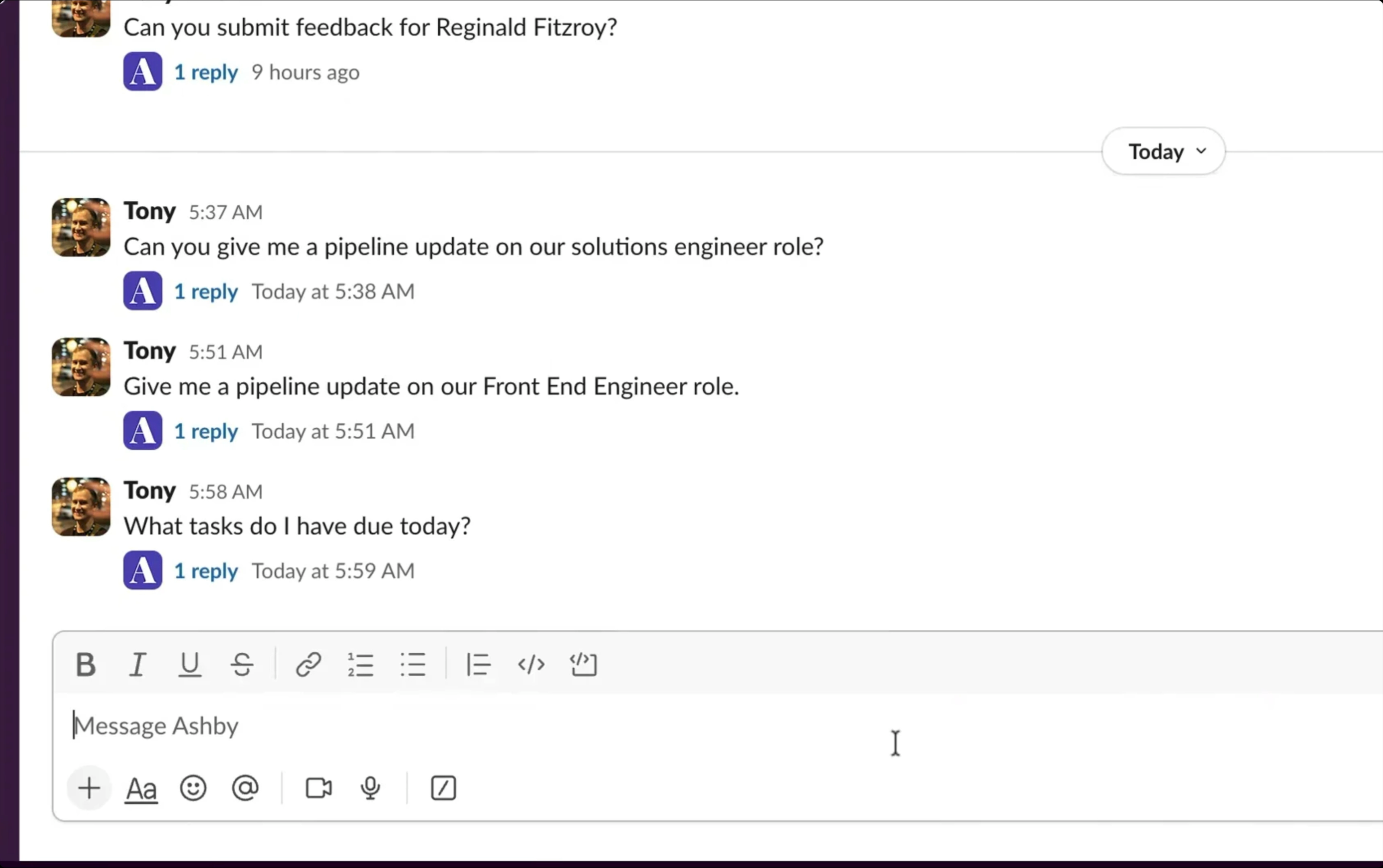
Have a 1:1 conversation with Ashby Assistant from DM
To use it, DM the Ashby app in Slack. Each new DM starts a new conversation, and replies within a thread keep full context from earlier messages in that thread. You can ask a question, refine the prompt, switch topics, and follow up within the thread. The experience is a private DM and 1:1 with the Ashby app.
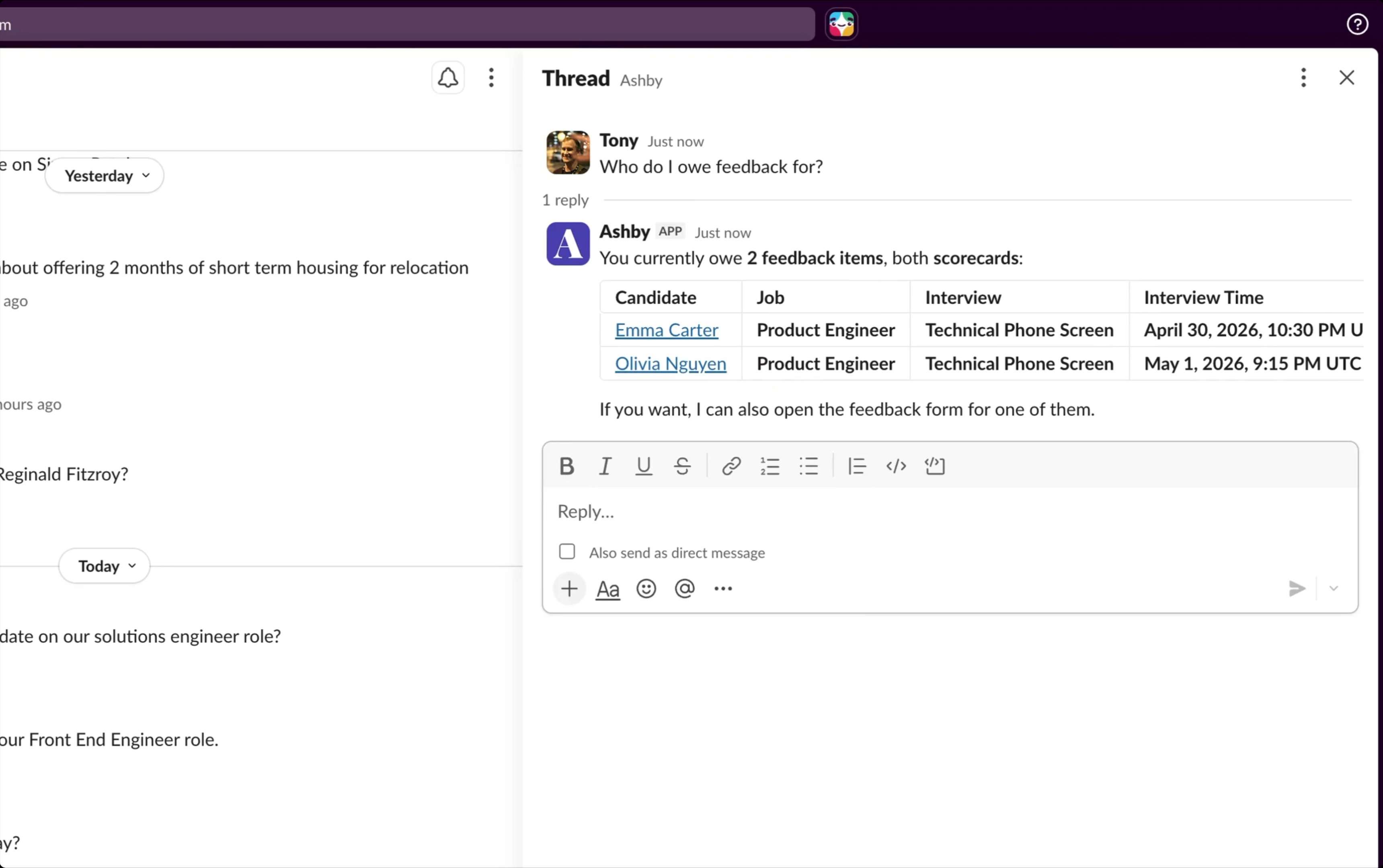
At any point, you can open Ashby Assistant in the web app and continue the conversation there.
The Slack assistant runs on the full set of tools available in the web app. You can ask it to look up a candidate, search your candidate pool, pull up an interview plan, find a job posting, or run a broad search across your Ashby data, with linked citations back to Ashby.
See a preview of the action before it happens
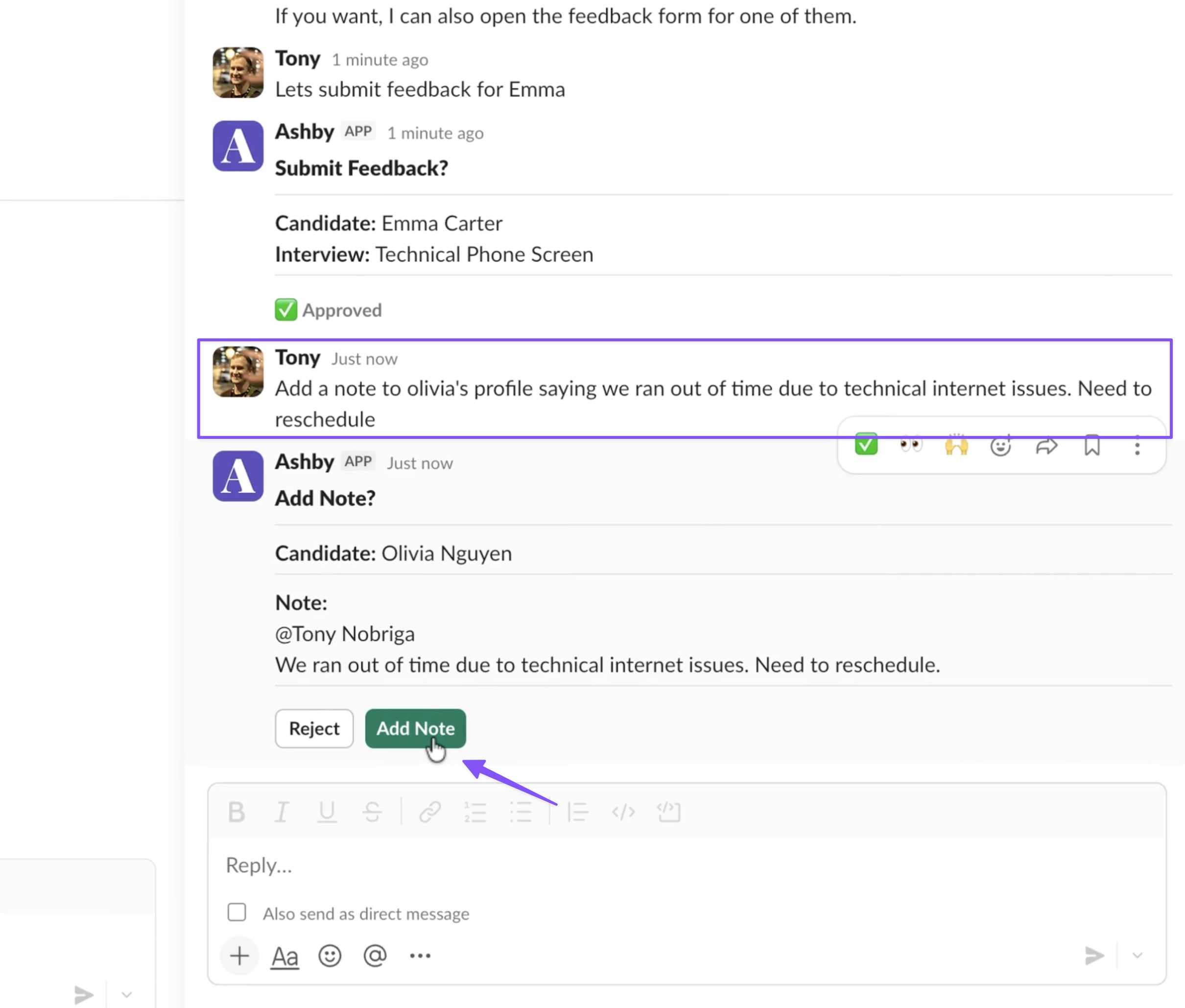
When the assistant is about to take an action, like sending an email, changing an application stage, or adding a note, it renders a preview in Slack with Confirm and Reject buttons, and the user gives final approval.
- For an email, you'll see a card with To, From, Subject, and the full body, plus a Send button.
- For a stage change, you'll see the candidate name, the job, and the current and target stages, plus a Change Stage button.
- For a note, you'll see the candidate name, the note content, and your avatar.
- For a form fill, you'll see a card with the form content and a Submit or Close button.
- If a preview cannot render cleanly for a particular action, the assistant falls back to a text-based confirmation with Approve and Reject options.
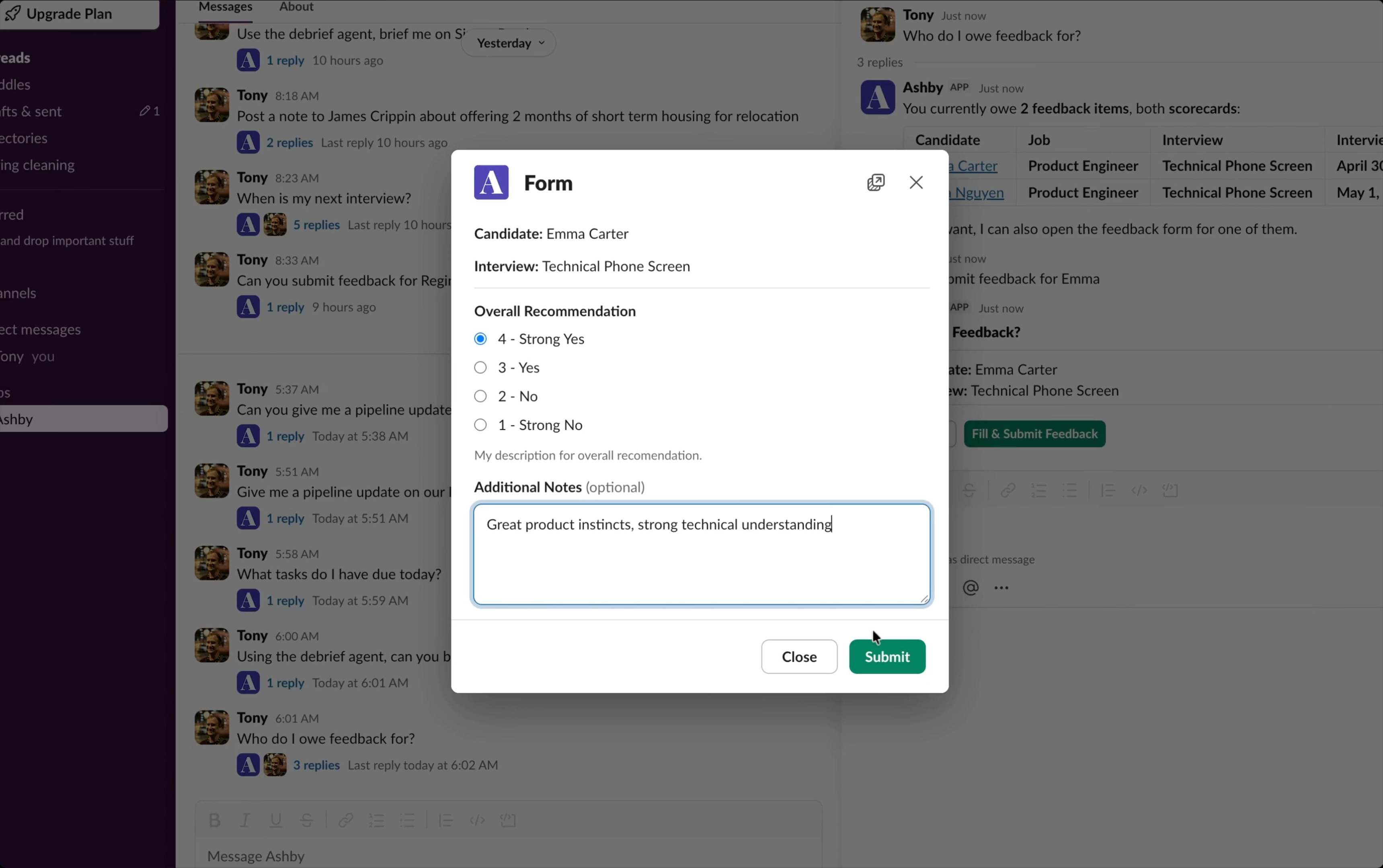
Every Ashby action you take from Slack still gets the equivalent review step you'd get in the web app.
Use Custom Agents from Ashby Assistant
The Custom Agents you build in Ashby Assistant are available in Slack. To use a custom agent in Slack, describe it by name in your message, for example: "Using the debrief agent, can you brief me on Simon Patel?" The assistant selects the right agent, runs it, and returns the result back into the thread.
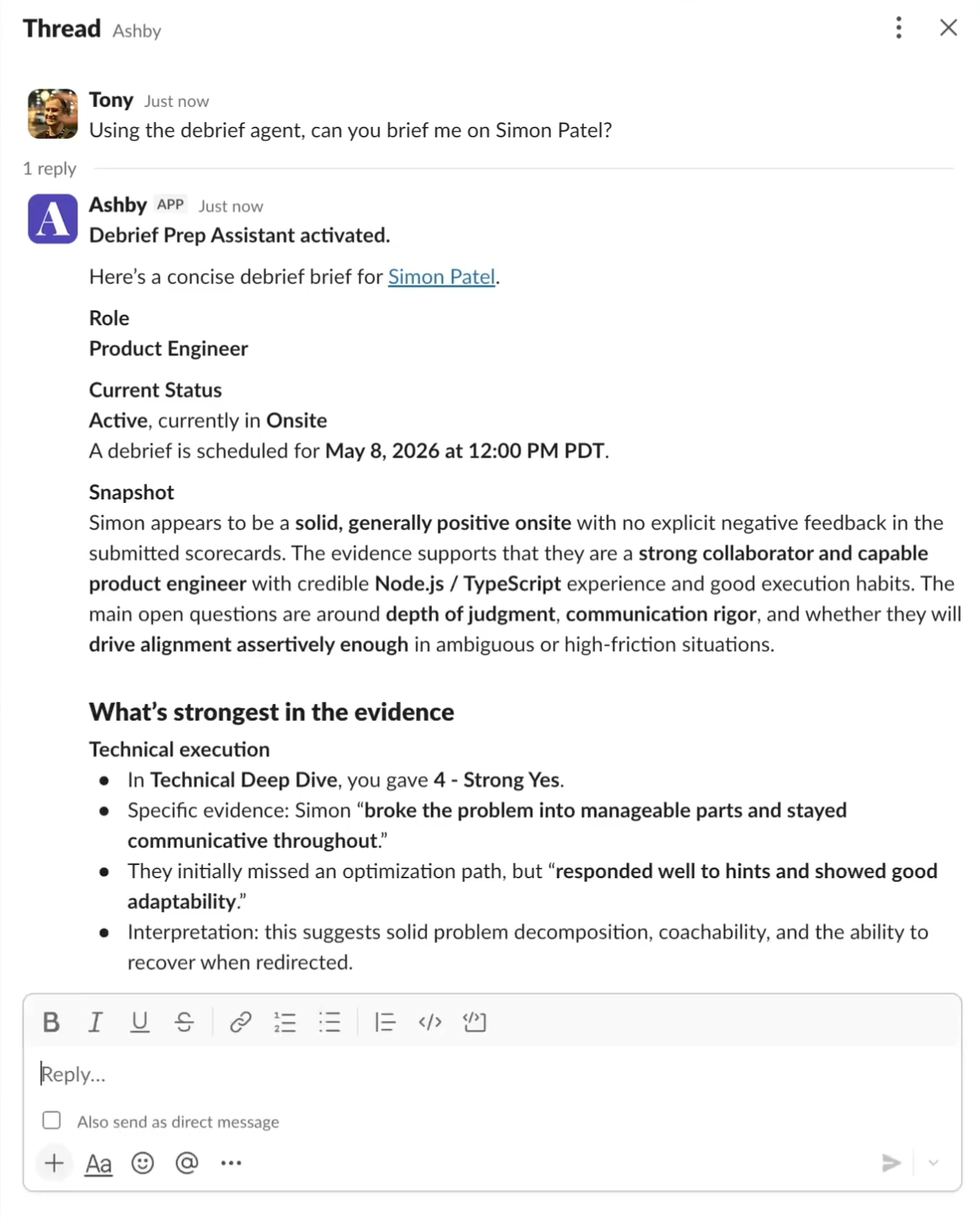
Note: you can't @mention agents directly in Slack the way you can in the web app, but referring to them by name in your message works the same way.
Permissions and access
Each Slack user maps to a single Ashby user. Every action and every piece of data the assistant accesses runs on behalf of that user, with the same permissions they already have in Ashby. If a user couldn't see a candidate's private notes in the web app, they can't see them through Slack either.
Access works the way it does in Ashby, so teams do not need to change how permissions are managed.
Release and pricing details
Ashby Assistant in Slack is available today as an open beta for all customers. It is free during testing period. Once we move to general availability, it will draw from your existing allotment of AI Credits, including when used through Slack.
Getting started
If you already have the Ashby Slack app installed and Ashby Assistant is turned on for your organization, you are ready to get started. Open a DM with the Ashby app to prompt Ashby Assistant.
If you have not set up the Slack integration yet, you can install it from the Integrations section of your admin settings. If you need to set up Ashby Assistant, you can turn it on from the Admin Settings under Opt-In Features.
Visit our help center for setup details, or book a demo to see it in action.